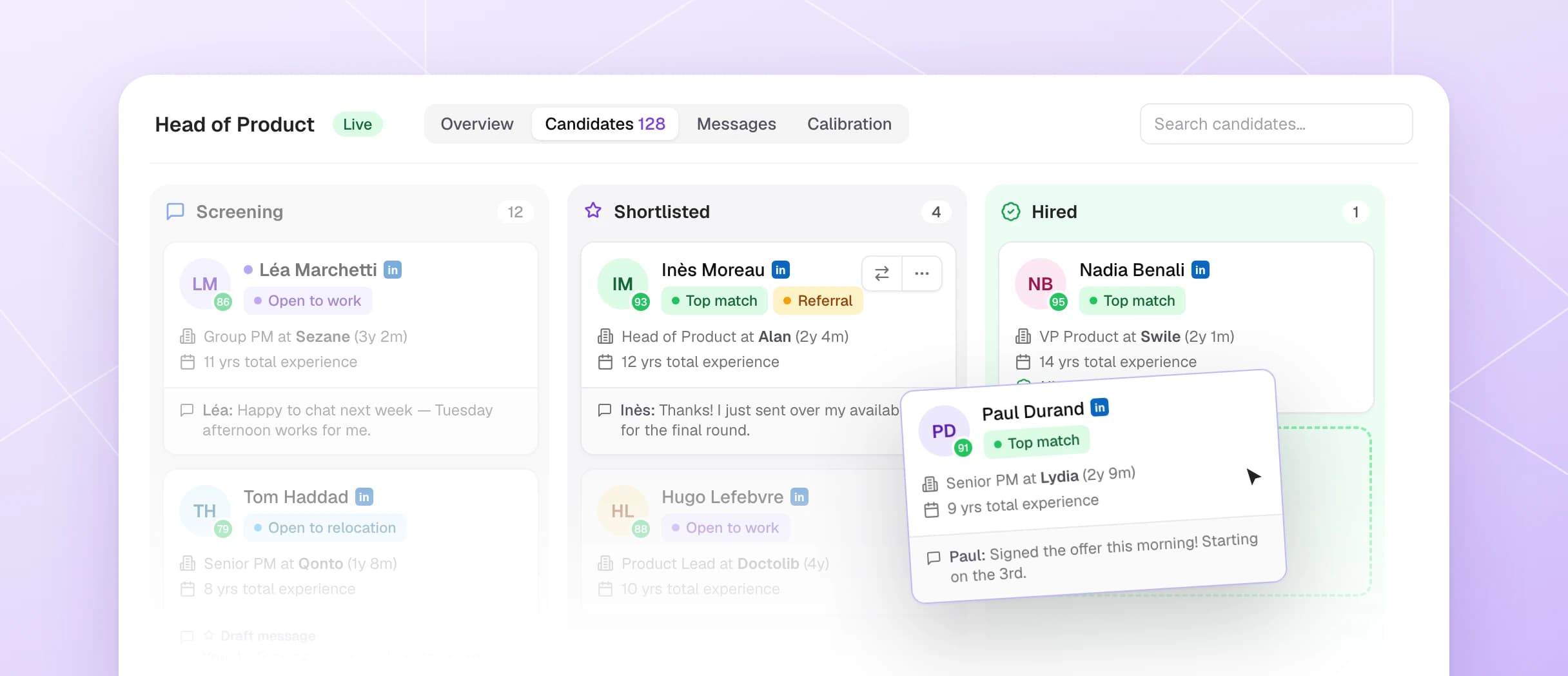
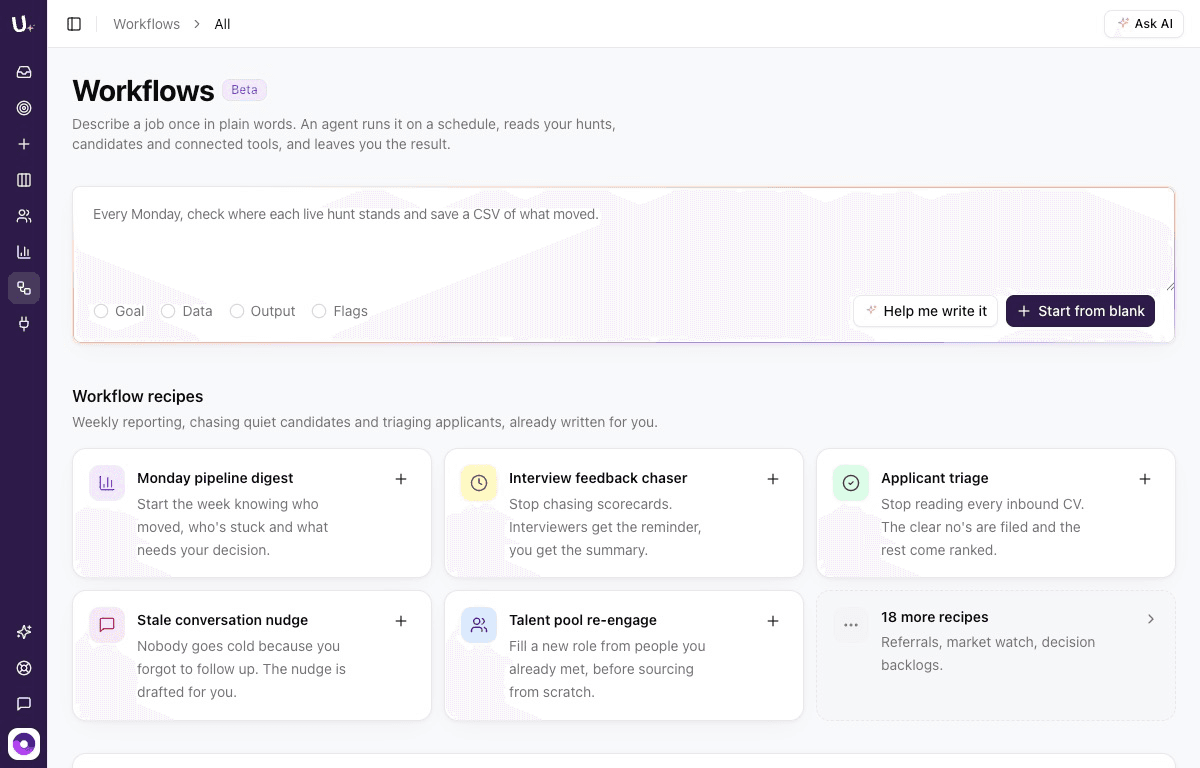
In October 2026, Umamy shipped shortlist reviews so hiring managers can approve candidates in one click, Umamy Momentum to surface who is actually ready to move right now, and Signals on every candidate profile so you can see and correct what the system knows at a glance. Here is the full rundown.
What did Umamy ship in October 2026?
Four features landed this month: shortlist reviews for hiring managers, Umamy Momentum, candidate Signals, and inline Inbox draft editing. Each one removes a different kind of friction from the hiring workflow.
Ask a hiring manager to review your shortlist
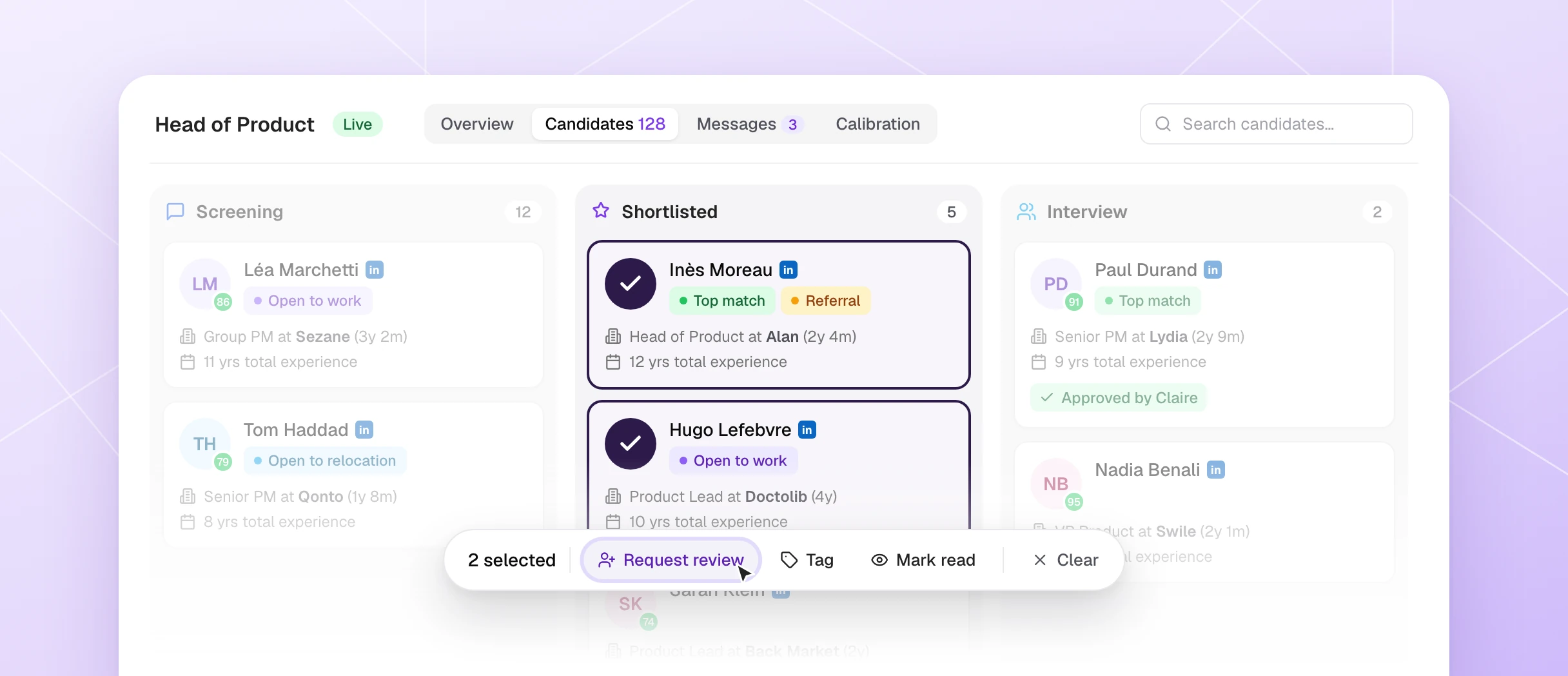
Until now, getting a hiring manager's opinion on your shortlist meant a spreadsheet, a forwarded email, or a calendar invite. Now it takes two clicks.
From a hunt's board (Columns view), select the candidates you want reviewed and click Request review. You can also start one from Shortlist reviews in the sidebar. Pick a teammate or type any email address. Someone outside your workspace joins as a Hiring manager — a new role that only sees the hunts they are asked about. Add a note and a due date, and they receive an email.
They decide on each profile: Approve, Not a fit or Skip, with an optional note. Their decisions appear as chips on the board cards. You can filter the board by Hiring manager review, and Move forward sends every approved profile to its next stage at once.
How teams use it. A recruiter shortlists a few profiles, sends them to the hiring manager with a due date, gets back a decision on each one, then pushes the approved ones to the next stage in a single action.
See who is ready to move, not only who fits
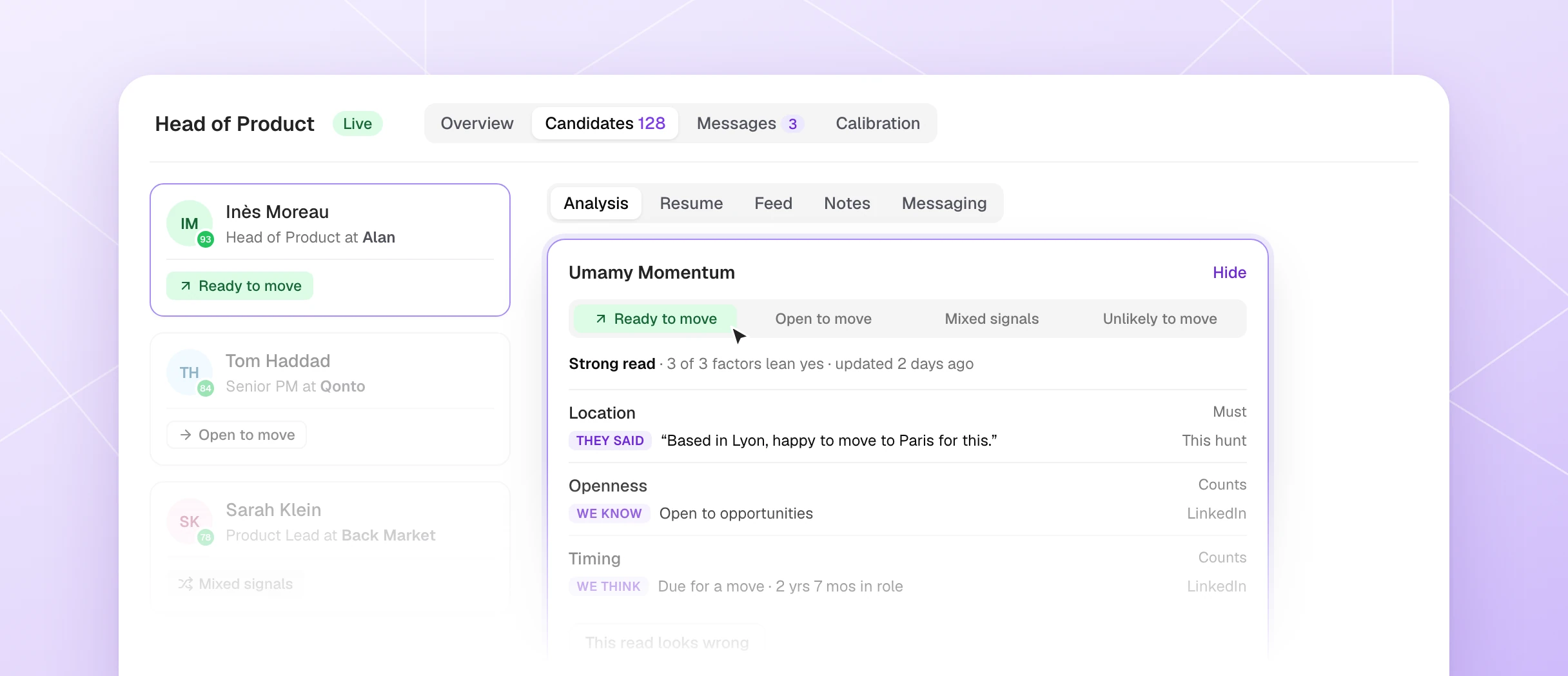
A strong profile is not always a candidate who will reply. Umamy Momentum reads, for each candidate, whether they look ready to move now — from their signals (what they said in a reply, their LinkedIn profile) and the factors you set for the hunt.
Set it up once per hunt: on the hunt's setup page, open the Umamy Momentum card and click Set up. Choose what matters for this role — Location, Openness, Work mode, Timing — and how much each factor counts: Off, Counts or Must. The hunt setup assistant can propose a configuration from your brief, but a Must is always yours to confirm.
Each candidate then gets a read: Ready to move, Open to move, Mixed signals, Unlikely to move, or Not enough signals. It shows on board cards and in the Analysis tab of the profile, and you can filter your candidates by Momentum.
How teams use it. For an on-site role, make Location a Must and Openness count. Filter by Momentum on Ready to move, and write to those candidates first.
See a candidate's signals, and correct the wrong ones
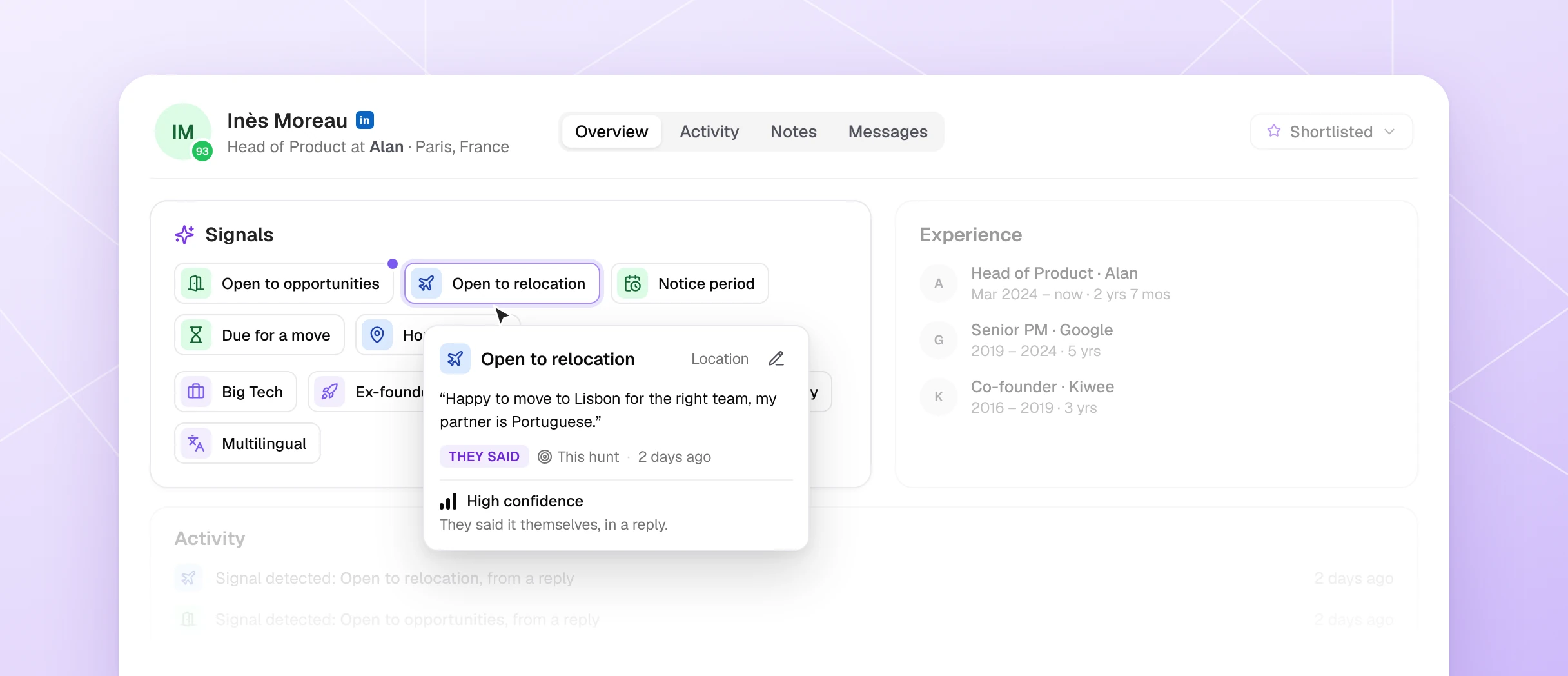
Every candidate profile now has a Signals card in Overview. What matters most comes first — are they open, where and how they want to work, when they can start — then their background: Big Tech, Ex-founder, Recently promoted, Top university.
Signals come from the candidate's replies to you, their LinkedIn profile, and their employers' company data. Hover one to see the quote or detail behind it, and whether it is They said, We know or We think. Old answers fade; a newer reply that says otherwise wins.
When a signal is wrong, hover it and click the pencil to Edit signal. Enter the new value, or remove it as It's outdated or It's not true and say why. Undo brings it back, and removed signals stay one click away with Restore.
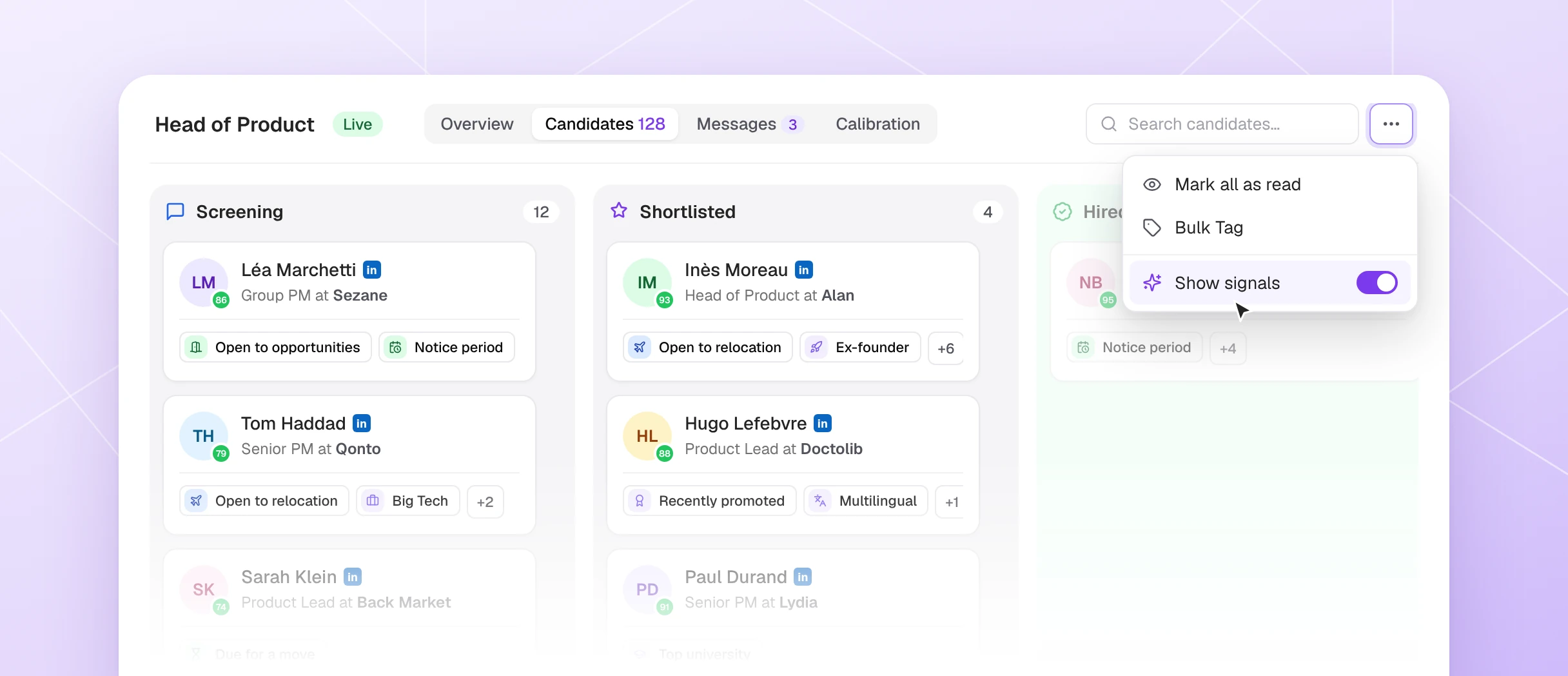
You can also surface signals on the board: turn on Show signals in the Candidates menu to see them on each card and in a new Signals column.
Edit a drafted reply right in your Inbox
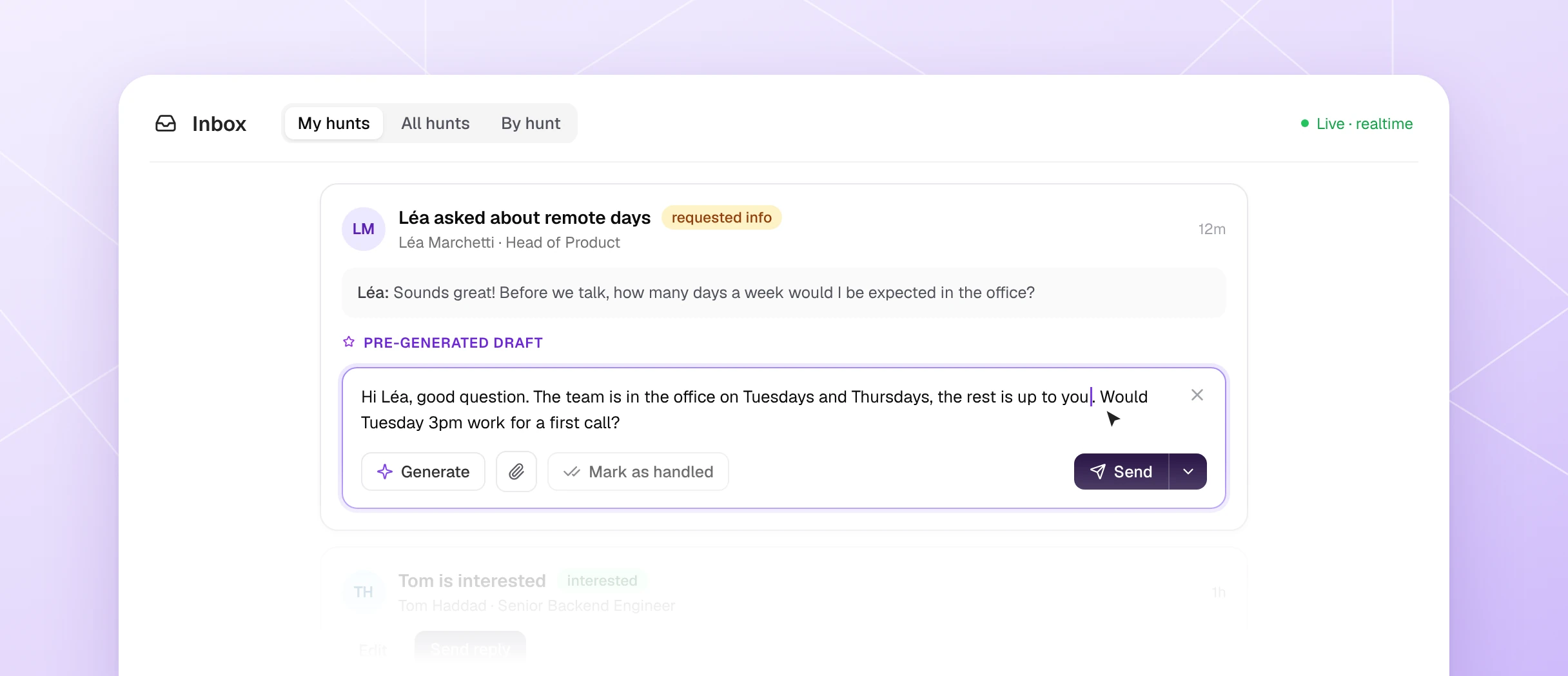
Until now, tweaking a drafted reply meant leaving your Inbox for the Messaging tab. Now, click Edit on a card's Pre-generated draft and the same composer opens inline. Generate, attach a file, send or Mark as handled — all the same actions, without context-switching.
Close the editor and your edit is saved. It also syncs with Messaging. When you reply or mark a conversation as handled, the candidate's other Inbox cards leave at once.
Also shipped in October
- LinkedIn replies retire stale drafts — when you answer a candidate directly on LinkedIn, the old AI draft and Inbox card close automatically, and a reaction counts as your answer.
- "How did it go?" waits for the meeting — the Inbox asks after the meeting, not when it is booked, and moves with it if the candidate reschedules.
- GDPR notice in intro messages — a bar under the intro editor checks the notice is present and can add it for you, with defaults in Settings > GDPR compliance.
- Outreach variable checks — mistyped variables in your messages turn red with a one-click Fix. French names like prénom and poste work in French interfaces.
- Summaries in your language — new-candidate summaries by email and Slack are written in your interface language.
- Hunt settings page — General, Team and Memory now live in one Settings page, opened from the gear beside the hunt status.
What is coming next
On the roadmap: one LinkedIn account shared cleanly across multiple hunts, with visibility into account health and invite pace.
Umamy is the AI hiring platform that lets founders and hiring managers run sourcing the way they would do it themselves — without the agency. From €249 per month, excluding VAT. If something in this update changes how your team hires, try Umamy.
Frequently asked questions
What is Umamy Momentum?
Umamy Momentum is a per-candidate read of whether they appear ready to move right now. It combines signals from their replies, their LinkedIn profile, and the factors you configure for the hunt — Location, Openness, Work mode, Timing — into one of five reads: Ready to move, Open to move, Mixed signals, Unlikely to move, or Not enough signals.
How do shortlist reviews work for hiring managers outside my workspace?
When you send a shortlist for review to an email address that is not in your Umamy workspace, that person joins as a Hiring manager: a limited role that only shows them the hunts they have been asked to review. They approve, reject or skip each profile with an optional note, and you can then move all approved candidates forward in one action.
Can I correct a candidate signal that is wrong?
Yes. Hover the signal on the candidate's profile and click the pencil icon to edit it. You can enter a new value or remove the signal entirely as outdated or incorrect, with a required reason. Removed signals can be restored at any time, and a newer reply from the candidate that contradicts an older signal wins automatically.